WordPress
WordPress update broke your site? How to get it back
You updated a plugin, and now every page says "There has been a critical error on this website." We broke a real WordPress site the same way and fixed it four ways. Here is what works, and what to watch for.
By Joost Hietbrink · · updated
Stets builds and hosts your website from the AI you already use. No plugins, nothing to update. Beta: new sites by invitation for now.
The short answer
A plugin that fails takes the whole site down with it. Switch that one plugin off and the site comes back: use the recovery link WordPress e-mails you, or rename the plugin's folder with your host's file manager. Then put back the old version, or wait for a fixed one.
What you’re looking at
When a plugin fails while WordPress loads, WordPress stops and shows this instead of your site, on every page:
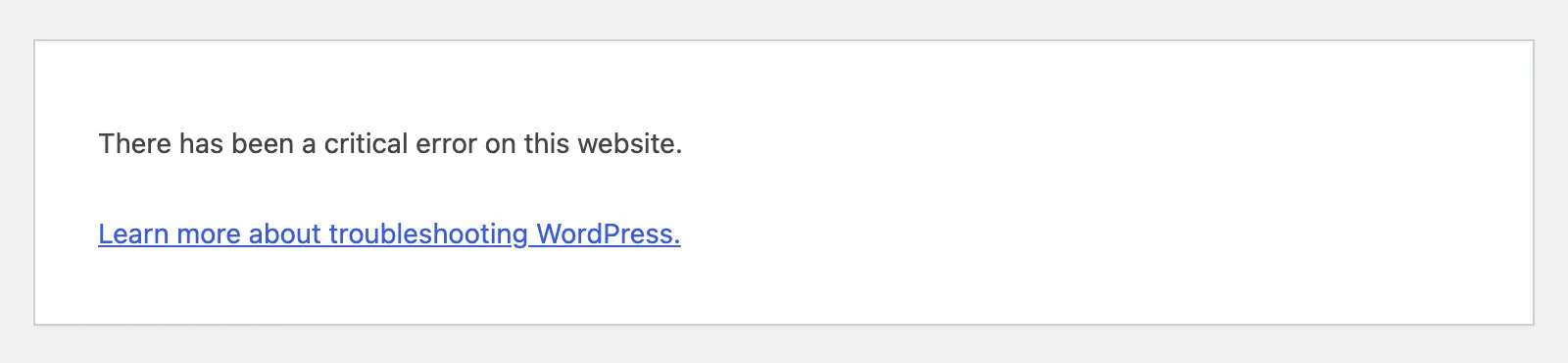
Nothing is lost. Your pages, posts and photos are still in the database. One plugin crashes, and because WordPress loads every plugin on every page, the whole site goes down with it. Switch that plugin off and the site comes back.
Before you start:
- Don’t run more updates. Another update now makes it harder to tell what broke it.
- Write down what you updated last. That plugin is almost always the one.
1. Use the link in the e-mail WordPress sent you
When WordPress catches a crash like this, it e-mails the site’s admin address. It sent ours the moment the first broken page loaded, with the subject “[Bakery Test] Your Site is Experiencing a Technical Issue”. It names the plugin (“WordPress caught an error with one of your plugins, Bakery Opening Hours”) and contains a link to recovery mode. The link works for one day; if the error happens again after that, WordPress sends a new one.
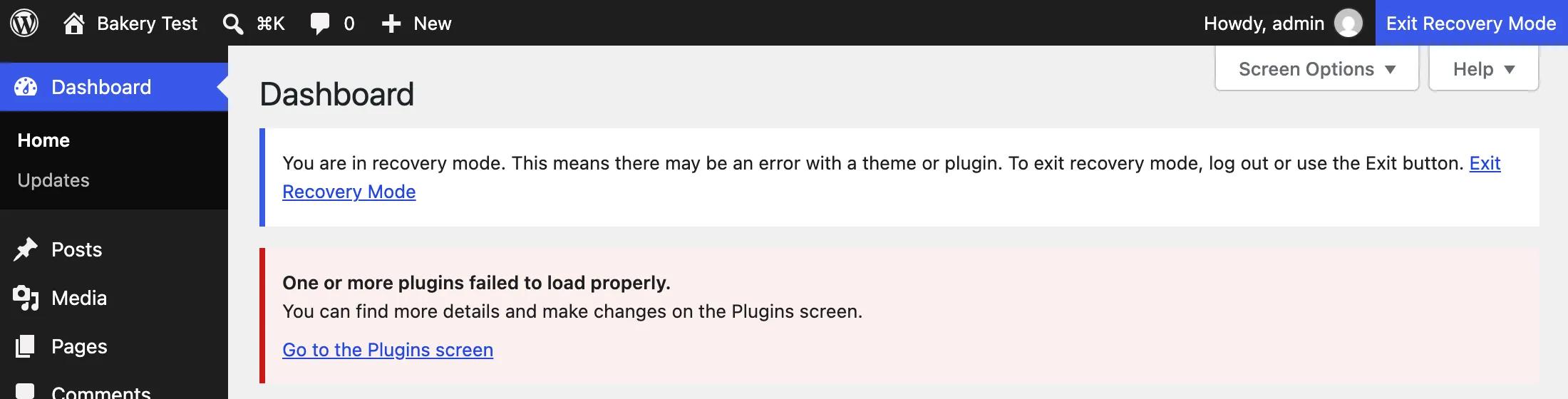
Open the link and log in. In recovery mode the broken plugin is paused for you only, so the admin pages work again:
Go to Plugins. The plugin that crashed is marked in red, with the error under it:
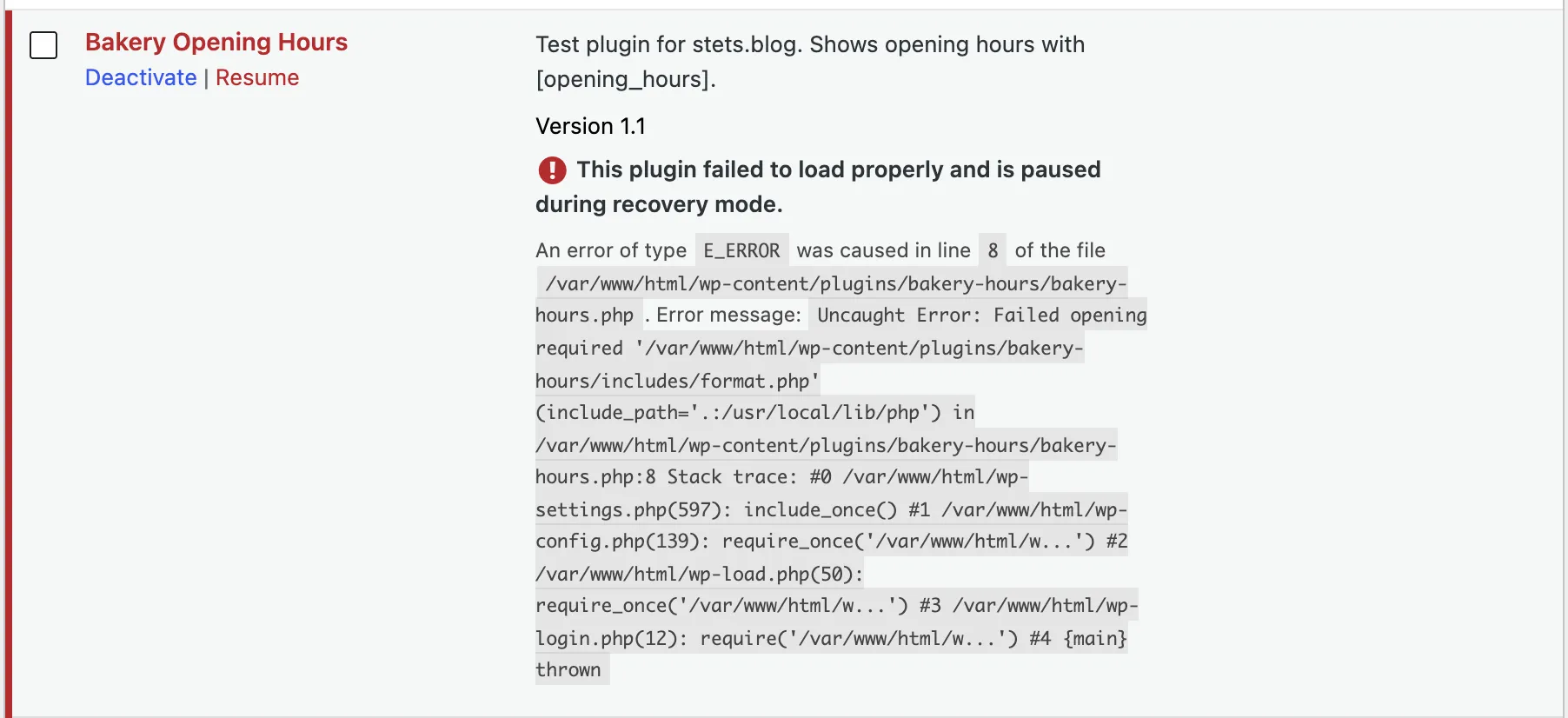
Click Deactivate, then Exit Recovery Mode at the top right. Your visitors see the site again, without that plugin.
No e-mail? It goes to the address under Settings → General → Administration Email Address. Mail sent by WordPress sites often lands in spam, or never arrives. Check your spam folder, then use fix 2.
2. Rename the plugin’s folder
This works without the e-mail, without logging in, and without knowing any code. You need your host’s file manager (in the hosting control panel) or an FTP/SFTP program.
- Open the folder
wp-content/plugins/of your site. - Find the folder of the plugin you updated, for example
bakery-hours. - Rename it, for example to
bakery-hours.off.
Load your site. On our test site it came back at once.
Two things we saw in our test:
- Whatever that plugin did is gone for now. Our page showed the raw text
[opening_hours]where the opening hours used to be, because the plugin that filled it in was off. That’s normal, and better than a broken site. - Open the Plugins screen once before you rename the folder back. WordPress then says “The plugin bakery-hours/bakery-hours.php has been deactivated due to an error: Plugin file does not exist” and marks it inactive. When we renamed the folder back without doing that, the plugin was still switched on and the critical error came straight back.
Don’t know which plugin it is? Rename the whole plugins folder (to plugins.off), make a new, empty plugins folder, and open the Plugins screen: WordPress switches every plugin off. Then delete the empty plugins folder, rename plugins.off back to plugins, and switch the plugins on one at a time, loading your site after each one. The one that brings the error back is the one.
3. Find the plugin in the error log
If you can edit wp-config.php (with the same file manager), WordPress can write the error to a file. Add these lines above /* That's all, stop editing! */:
define( 'WP_DEBUG', true );
define( 'WP_DEBUG_LOG', true );
define( 'WP_DEBUG_DISPLAY', false );
Load the site once, then open wp-content/debug.log. Ours said:
[26-Nov-2026 09:38:01 UTC] PHP Fatal error: Uncaught Error: Failed opening required '/var/www/html/wp-content/plugins/bakery-hours/includes/format.php' (include_path='.:/usr/local/lib/php') in /var/www/html/wp-content/plugins/bakery-hours/bakery-hours.php:8The folder name after /plugins/ is the plugin that broke your site: bakery-hours. Now use fix 2 on that folder.
Remove those lines again when you’re done, and delete debug.log. On our test site, anyone could open /wp-content/debug.log in a browser. Error logs can show file paths and other details you don’t want to publish.
4. With WP-CLI, if your host gives you SSH
wp plugin deactivate bakery-hours --skip-pluginsThe --skip-plugins part matters. Without it, WP-CLI loads the broken plugin too and stops with the same fatal error. We tried: wp plugin list on its own failed, and with --skip-plugins the plugin was off in one line.
Then: get the plugin back
The site works, but you still want what the plugin did. You have three choices:
- Wait for a fixed version. Often the plugin’s maker has already heard about it. Look at the plugin’s support forum on wordpress.org, or its maker’s site.
- Put back the version that worked. For free plugins on wordpress.org, the plugin’s page has an Advanced View link, with Previous Versions on it. wordpress.org warns that old versions “may not be secure or stable”, so treat this as a stopgap. Replace the plugin’s folder with the old one. In our test, putting version 1.0 back fixed the site a few seconds later: PHP keeps a cached copy of the old file for a moment (2 seconds on our server).
- Restore a backup from before the update, if your host keeps them. This also undoes anything else that changed since, such as new orders or comments, so use it last.
Stuck on “Briefly unavailable for scheduled maintenance”?
That’s a different problem. During an update, WordPress puts a file called .maintenance in your site’s main folder and shows this message to everyone. When an update stops halfway, the file can stay behind.

Delete .maintenance (with the file manager; it can be hidden, so turn on “show hidden files”). The message goes away at once. WordPress also ignores the file once it is 10 minutes old: we tested this with a file dated 10 minutes back. If you still see the message after that, you are probably looking at a cached copy: clear your caching plugin or your host’s cache.
Won’t WordPress stop this by itself?
Partly. Since WordPress 6.6, when an automatic plugin update causes a fatal error, WordPress restores the previously installed version and e-mails the admin. Since 6.3, a manual update that fails while installing (the download, or copying the files into place) also restores the previous version. But a manual update that installs fine and only then crashes the site, like ours, gets through. So does a plugin changed by FTP, or by your host.
What helps next time:
- Update one plugin at a time, and look at your site after each one.
- Make sure the admin e-mail address works, so the recovery link reaches you.
- Make a backup first, or check that your host makes one every day.
- Fewer plugins, fewer surprises. Each one is code from a different maker, updated on its own schedule.
How we tested
- WordPress 7.1.5 on PHP 8.3.37 (the official Docker image), with the Twenty Twenty-Five theme, on 26 November 2026.
- A small plugin we wrote, Bakery Opening Hours. Version 1.0 worked. We broke version 1.1 on purpose: it loads a file the update didn't include.
- Every fix below was run on that site, and every message is copied from what it showed us. The test site had no mail server, so a test-only hook caught the e-mail WordPress sent.
Sources
- Debugging in WordPress (WP_DEBUG_LOG) (developer.wordpress.org)
- Merge Proposal: Rollback Auto-Update (make.wordpress.org, April 2024: restores the previous version, e-mails the admin)
- Hidden in plain site: WordPress 6.6's Auto-Update Rollback Feature (WordCamp Europe 2025 talk)
- New in 6.3: Rollback for failed manual plugin and theme updates (make.wordpress.org, July 2023)
- A plugin's Advanced View, with Previous Versions (Akismet as the example) (wordpress.org)